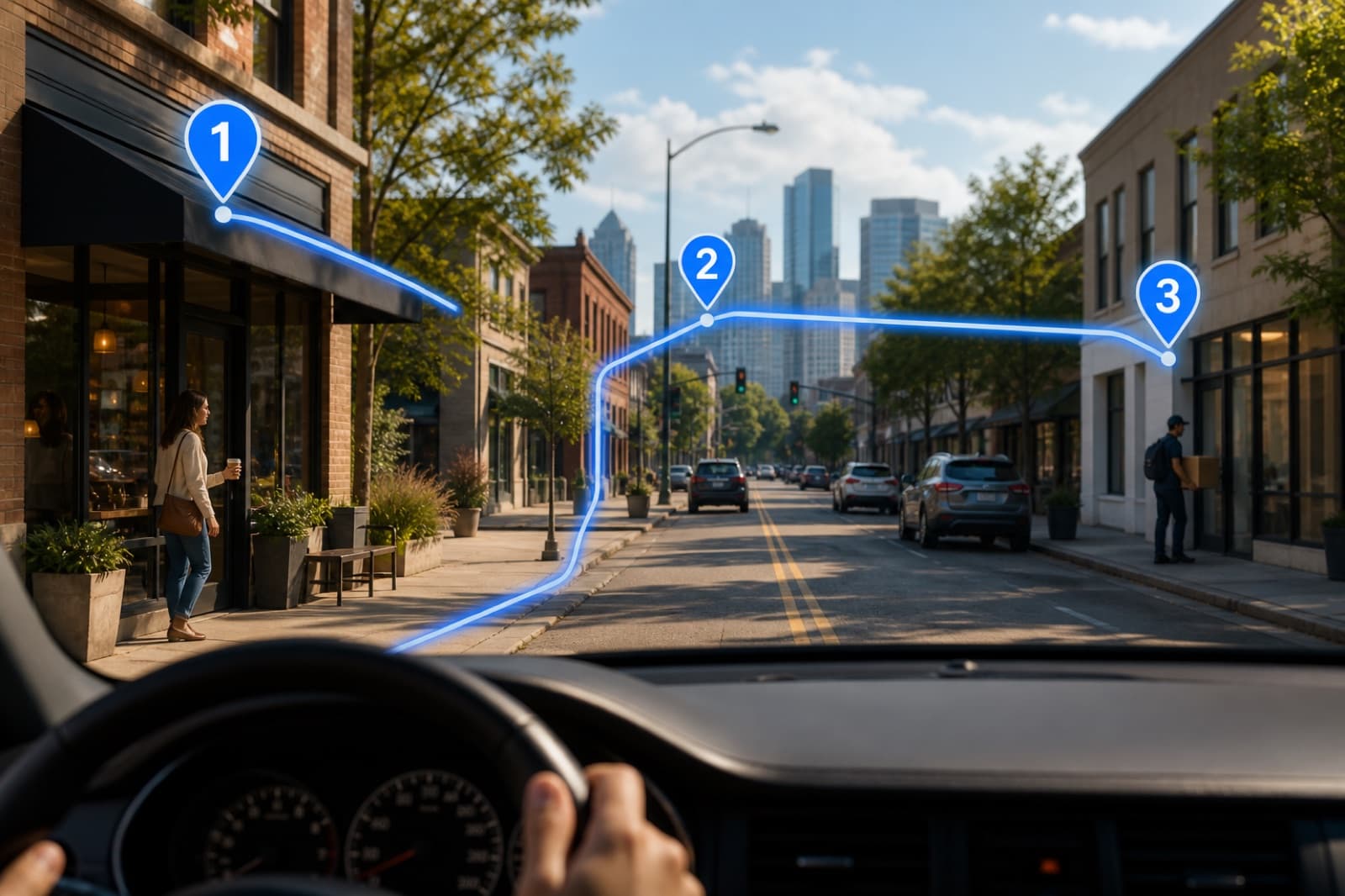
Planning a route with multiple stops sounds simple until you have six destinations, a two-hour window, and no idea which order makes sense. Whether you're a delivery driver, a sales rep, or just trying to knock out five errands before noon, a well-planned multi-stop route saves time, fuel, and frustration.
This guide walks you through the whole process — from gathering your addresses to hitting the road with a fully optimized route.
Step 1: Collect all your stop addresses
Before you open any app, write down every location you need to visit. Be specific — "the grocery store" isn't useful; "1200 Main St, Anytown" is. For each stop, note:
- The full street address
- Any time windows (e.g., a business only open 9–5)
- Approximate dwell time (how long you'll be there)
Having everything ready before you start saves you from re-entering stops later.
Step 2: Identify your start and end points
Most multi-stop routes have a fixed starting point — usually home, your office, or a warehouse. Your ending point might be the same (round trip) or different (e.g., dropping off at a client site and then heading home from there).
Deciding this upfront lets the planner know which stops it can reorder and which must stay fixed.
Step 3: Enter your stops into a route planner
Open Free Route Planner and add your stops one by one. You can type in addresses and the planner will geocode them (convert them to map coordinates) automatically.
Tips:
- Add your starting point first
- Use copy-paste from your notes or a spreadsheet
- Check each pin on the map to confirm the geocoder found the right location
Step 4: Run the optimizer
Once all stops are added, click Optimize Route. The planner will reorder your intermediate stops to minimize total driving time and distance, using the Traveling Salesman Problem (TSP) algorithm under the hood.
Your start and end points stay fixed — only the middle stops get shuffled.
Step 5: Review the optimized order
Check the suggested route on the map:
- Do the numbered pins flow logically on the map?
- Does the total drive time fit your schedule?
- Are there any stops with time windows you need to respect?
If you need to lock a stop into a specific position (e.g., stop #1 must be first because the client only has a 9 AM slot), you can manually adjust the order before finalizing.
Step 6: Review turn-by-turn directions
Expand the directions panel to see every maneuver. Check for:
- Any toll roads you want to avoid
- Unusual instructions (ferry crossings, private roads)
- Total estimated time vs. your available window
Step 7: Export or copy your route
When you're happy with the order, copy the stop list or export it. This is useful for sharing with a driver, pasting into a navigation app, or keeping on your phone as a reference.
Tips for efficient multi-stop routing
Group nearby stops together. Even with optimization, it helps to think in clusters — don't interleave stops on opposite ends of town.
Factor in traffic. Route planners estimate drive time based on average speeds. Real traffic — especially during rush hour — can add significant time. Leave buffer.
Plan time at each stop. A 20-stop route that looks manageable on paper falls apart if each stop takes 15 minutes and you didn't account for it.
Know your vehicle's limits. Multi-stop routes for cargo vehicles may have weight, height, or road-type restrictions that a standard route planner won't flag.
How many stops can you plan at once?
Free Route Planner supports up to 25 stops per route — well above the 10-stop limit of most consumer apps. For larger operations with 50+ stops or multiple drivers, you'd need a logistics platform like Routific or OptimoRoute.
For most individuals and small businesses, 25 stops per trip covers the vast majority of real-world use cases.
Summary
Planning a multi-stop route doesn't need to be complicated:
- Gather your addresses
- Set your start and end
- Enter them into a planner
- Let the optimizer reorder them
- Review, adjust, and go
Open the Free Route Planner and try it now — free to plan, optional account to save.